The Same PC Is CPU-Bound at 1080p and GPU-Bound at 1440p
"Is my CPU or my GPU the bottleneck?" has no answer as written, because it is missing a word. The CPU does the same work per frame at any resolution while the GPU's work scales with pixels — so the bottleneck moves when you move one slider. Here is where it crosses over, the thirty-second test that tells you which side you are on, and why DLSS sometimes buys you nothing at all.
By Shujaat Ahmed · · 8 min read
"Is my CPU or my GPU the bottleneck?" is the most-asked question in PC gaming, and as written it has no answer. Not because it is difficult — because it is missing a word.
The bottleneck is not a property of your PC. It is a property of your PC at a given resolution. The same machine, the same game, the same settings can be CPU-bound at 1080p and GPU-bound at 1440p without a single component changing. Nothing is upgraded, nothing is overclocked; you move one slider and the answer flips.
Once you see why, a lot of confusing advice stops being confusing — including why your expensive new graphics card did so little, and why turning on DLSS sometimes changes nothing at all.
Frame time is whichever is slower, not the two added together
Your CPU prepares a frame: game logic, physics, animation, culling, and the draw calls that tell the GPU what to put on screen. Your GPU takes those instructions and renders pixels.
Crucially, they work in parallel. While the GPU is rendering frame 40, the CPU is already building frame 41. So the time a frame takes is not CPU time plus GPU time. It is whichever of the two is slower:
- CPU 8 ms, GPU 6 ms → frames take 8 ms → 125 fps, and the GPU idles 2 ms every frame
- CPU 6 ms, GPU 8 ms → frames take 8 ms → 125 fps, and now the CPU is the one waiting
Same frame rate, opposite problem, and completely different upgrade advice. This is also why the symptom people notice first is GPU utilisation sitting well below 100% — that number is not a bug, it is the GPU waiting for work.
Frame time rather than frame rate is the right unit here for the same reason it is the right unit for stutter: milliseconds add up and compare, percentages do not.
Resolution only moves one of the two numbers
Here is the asymmetry the whole thing rests on.
The CPU's work is per-object. It issues the same draw calls, runs the same physics and animates the same characters whether you are rendering at 1080p or 4K. Its cost barely moves.
The GPU's work is per-pixel, and pixel counts are not close to each other:
- 1080p — 1,920 × 1,080 = 2,073,600 pixels
- 1440p — 2,560 × 1,440 = 3,686,400, or 1.78x a 1080p frame
- Ultrawide 3440 × 1440 = 4,953,600, or 2.39x
- 4K — 3,840 × 2,160 = 8,294,400, or exactly 4.00x
One honest caveat: CPU cost is not perfectly flat across resolutions. Higher resolutions can shift level-of-detail thresholds and change what gets culled. But the effect is small next to a 4x swing in pixel work, and treating CPU cost as constant is the right mental model.
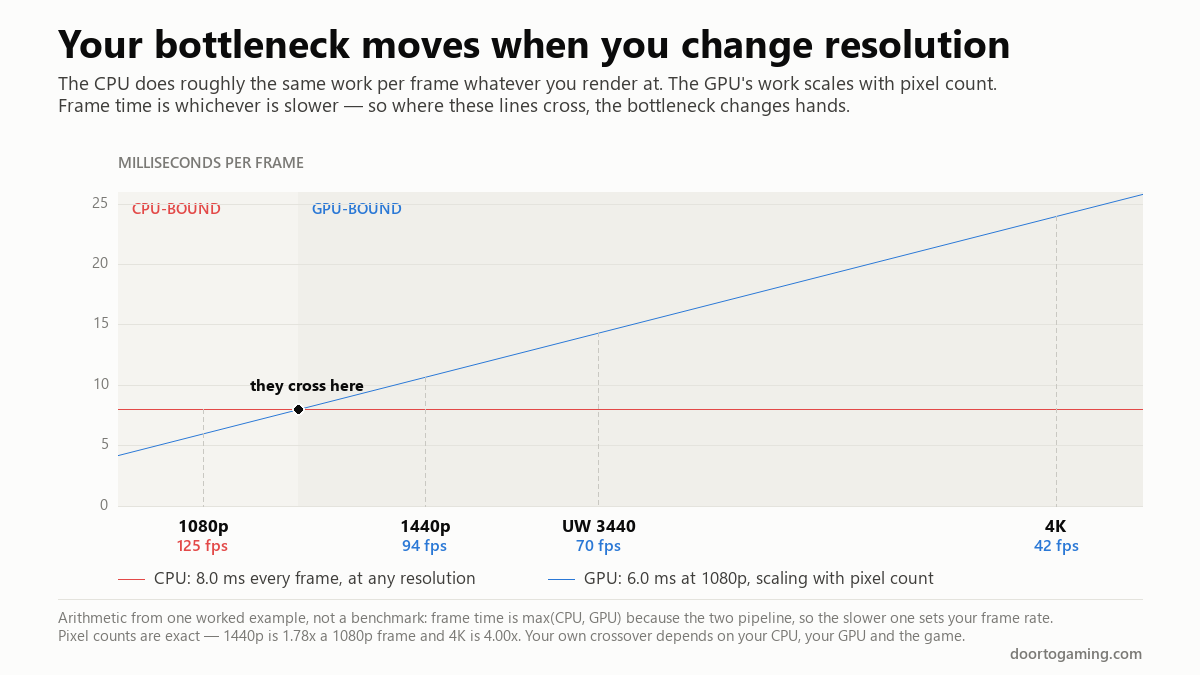
So as you raise resolution, one line on the graph climbs and the other stays where it is. They cross.
The crossover, worked through
Take a machine where the CPU needs 8.0 ms a frame and the GPU needs 6.0 ms at 1080p. Scale the GPU by pixel count and take the slower number each time:
- 1080p — GPU 6.00 ms vs CPU 8.0 ms → 8.00 ms → 125 fps, CPU-bound
- 1440p — GPU 10.67 ms vs CPU 8.0 ms → 10.67 ms → 94 fps, GPU-bound
- Ultrawide — GPU 14.33 ms → 70 fps, GPU-bound
- 4K — GPU 24.00 ms → 42 fps, GPU-bound
The handover happens where the GPU's time catches the CPU's, at 8.0 ÷ 6.0 = 1.33x a 1080p frame — about 2,764,800 pixels, which falls between 1080p and 1440p. Below it, the CPU decides your frame rate. Above it, the GPU does.
There is a detail in those numbers worth pulling out. Going from 1080p to 1440p costs this PC 25% of its frame rate, while the pixel count rose 78%. That sounds like a bargain, and it is — but not for a flattering reason. It is cheap because the machine was never delivering its 1080p potential in the first place. The GPU could have produced 167 fps at 1080p; the CPU held it to 125. Moving to 1440p mostly spends headroom that was being wasted.
How to tell which one you are on
Two methods, and the second is better.
Read GPU utilisation. Put GPU usage and a frame-time graph on screen — MSI Afterburner with RivaTuner, HWiNFO, or your GPU driver's own overlay. Sitting at 95–100% means GPU-bound. Sitting well below 90% while your frame rate is lower than you want means something else is the limit, usually the CPU.
Or just drop the resolution, which needs no tools at all. Set the game somewhere far below where you normally play — 1440p down to 720p — and look at the frame rate:
- It barely moves → you are CPU-bound. You removed three-quarters of the GPU's work and gained nothing, because the GPU was not the thing holding you back.
- It climbs sharply → you were GPU-bound, and the pixels were the cost.
The second test is more reliable because utilisation figures mislead in both directions. A frame cap, V-Sync, or a background process can all push GPU usage down without the CPU being the real constraint — and if you have a frame limiter running, that is worth ruling out first.
Why DLSS sometimes gives you almost nothing
Upscaling reduces the GPU's pixel work. It does nothing whatsoever for the CPU. Which means its value depends entirely on which side of the crossover you are on.
DLSS Quality renders at roughly 66.7% of your output resolution on each axis. At 1440p output that is 1,708 × 960 — 1,639,680 pixels, or 0.79x a native 1080p frame. You are asking the GPU to draw fewer pixels than it would at 1080p.
Run that through the same machine. The GPU's frame time falls from 10.67 ms to 4.74 ms, a saving of nearly six milliseconds. The CPU still needs 8.0. Frame time is therefore 8.0 ms, and you get 125 fps — exactly the number you had at 1080p, and exactly the number the CPU was always going to give you.
The upscaler did its job perfectly and bought you nothing.
This is the same trap as frame generation, which also needs a healthy base frame rate before it helps rather than rescuing a bad one. Both technologies work on the GPU's half of the problem, and neither can do anything about the other half.
A related curiosity from the same arithmetic: 4K with DLSS Quality renders about 3,690,000 pixels, which is within a rounding error of native 1440p. If you know what your machine does at 1440p, you already know roughly what it will do at 4K with Quality upscaling.
What this actually means for an upgrade
- CPU-bound at the resolution you play at? A faster graphics card will buy you nothing. This is the expensive mistake, and it is common, because "upgrade your GPU" is the default advice regardless of circumstances.
- GPU-bound? A faster card scales more or less the way the benchmarks suggest. A faster CPU will do nothing.
- Playing at 1080p on a high-refresh monitor? You are the most likely person in this article to be CPU-bound. Chasing 240 fps at 1080p is close to a pure CPU problem, and this is precisely where GPU upgrades disappoint.
- If you are CPU-bound, better image quality is free. Raise resolution, shadow quality, ray tracing — anything that costs GPU time and not CPU time — and your frame rate will not move until the GPU's line crosses the CPU's. You are spending headroom that is currently going to waste. The same logic applies to Minecraft shaders, where the shadow pass is almost entirely GPU work.
The question worth asking is never "which is my bottleneck". It is "which is my bottleneck, at the resolution and settings I actually play at" — and the second question has an answer you can test in about thirty seconds.
The short version
- Frame time is max(CPU, GPU), not CPU + GPU. They pipeline, so the slower one sets your frame rate and the faster one waits.
- Resolution only moves the GPU's number. The CPU issues the same draw calls at any resolution; the GPU's work scales with pixels, and 4K is exactly 4.00x the pixels of 1080p.
- So the bottleneck moves. A machine at 8 ms CPU and 6 ms GPU is CPU-bound at 1080p and GPU-bound from about 1.33x those pixels upward — somewhere before 1440p.
- The free test: drop to 720p. If the frame rate barely changes, you are CPU-bound. If it climbs, you were GPU-bound.
- DLSS only helps the GPU side. On that example machine, DLSS Quality at 1440p saves six milliseconds of GPU time and produces exactly zero extra frames, because the CPU was the wall.
- If you are CPU-bound, turn the settings up. Better image quality costs you nothing until the GPU catches up with the CPU.
Tags: Frame Time DLSS PC gaming performance CPU bottleneck GPU bottleneck upscaling 1440p 4K gaming GPU upgrade CPU upgrade gaming resolution FPS
Written by Shujaat Ahmed
Shujaat Ahmed is the founder and editor of Door To Gaming. A lifelong gamer, he writes about the games, hardware, and industry news he cannot stop thinking about.