Your Frame Rate Is Worse After an Hour. That Isn't Your Imagination.
Same settings, same scene, same machine — and an hour in it runs worse. Nothing has gone wrong: your heatsink started cold, and the number on the counter at minute two was never going to survive to minute sixty. What GPU Boost is actually doing, what a 10% clock loss costs you, why reviews cannot show it, and why undervolting removes far more heat than it looks like it should.
By Shujaat Ahmed · · 8 min read
You sit down, the game runs beautifully, and an hour later it does not. Same settings, same scene, same machine. Nothing was updated and nothing was installed. It is tempting to blame the game, a background process, or your own memory of how good it looked earlier.
It is usually heat, and the most useful thing to understand about it is that nothing has gone wrong. Your graphics card is working exactly as designed. The design simply gives you a number at minute two that it has no intention of holding at minute sixty.
The first ten minutes are the fastest your PC will ever be
When you launch a game on a cold machine, the heatsink is at room temperature. Silicon heats in milliseconds, but the slab of metal bolted to it, and the air moving across that metal, take much longer. For the first several minutes the cooler is effectively a buffer with spare capacity, and the card can hold its highest clocks because nothing is yet pushing back.
Steady state usually arrives somewhere between ten and twenty minutes in. That is the point where heat going in equals heat coming out, and it is the only number that describes what playing actually feels like.
Everything before it is a transient. The figure on your overlay in the first minute is real, it is just temporary.
What GPU Boost is actually doing
Modern graphics cards do not have a clock speed. The boost clock printed on the box is closer to a typical target than a ceiling, and the card re-picks its frequency continuously against several limits at once — power draw, temperature, and voltage.
How it responds when it hits one has changed, and the change matters for whether you notice:
- GPU Boost 3.0 used a hard temperature limit. Cross it and the card dropped from boost to base clock immediately, and the fans then ramped to recover.
- GPU Boost 4.0, introduced with Turing in September 2018, removed that cliff. It instead uses "a frequency plateau between the uncapped boost and base clock when the temperature exceeds the threshold", governed by two user-configurable points — one where you would rather the fans ramped, one where you would rather the frequency dropped.
So a current card degrades gradually instead of falling off a ledge. That is better engineering, and it is precisely why the problem is hard to spot: there is no moment where something obviously breaks. The card just gets quietly slower while you are busy playing.
One honest gap: NVIDIA does not publish the clock-versus-temperature response. Anyone quoting you an exact megahertz-per-degree figure is estimating. What you can do is measure your own, which is the next section.
What the drop actually costs
For GPU-bound work, frame rate scales roughly with core clock, so a sustained clock deficit converts directly:
- 5% below peak — 60 fps becomes 57, 144 becomes 137
- 10% below peak — 60 becomes 54, 144 becomes 130
- 15% below peak — 60 becomes 51, 144 becomes 122
A 10% sustained loss is the difference between holding 60 and not holding it, which is exactly the sort of thing you feel before you can name it.
It is also worse than those averages imply. Throttling is not a clean step down to a lower number; the clock hunts around the threshold, rising when the fans catch up and falling when they do not. That oscillation lands in your frame times rather than your average, and frame time variance is what you perceive as the game feeling bad even when the counter still reads something respectable.
Why reviews never show you this
A benchmark pass typically runs 30 to 60 seconds. That is between 0.8% and 1.7% of a one-hour session, and it is spent in exactly the window where the cooler still has slack.
This is not dishonesty, and the better outlets loop their tests or state their methodology clearly. But a number produced in the first minute of a cold run is a different measurement from the one you live with, and it is the number that ends up in the headline. It is the same reason a 30-second pass under-reports VRAM problems: short tests systematically miss the failure modes that need time to develop.
Laptops deserve a line of their own here. A laptop shares one small thermal budget between CPU and GPU, through a radiator a fraction of a desktop's size. Everything above happens faster, harder, and with less you can do about it.
How to tell whether it is happening to you
Log a session rather than watching one. Put GPU temperature, core clock and frame time on an overlay — MSI Afterburner with RivaTuner, or HWiNFO — and play normally for half an hour.
Then compare minute two with minute twenty-five. If the temperature has climbed and the clock has fallen, you have your answer, and you have it as a measurement rather than an impression.
On NVIDIA, ask the driver directly. nvidia-smi -q -d PERFORMANCE reports throttle reasons by name, so it will tell you whether you are temperature-limited, power-limited or voltage-limited instead of leaving you to infer it. That distinction decides which fix is worth your time.
And rule out the neighbours. A gradual decline over many minutes is thermal. Hitching while the average holds up is a stutter problem with different causes. An abrupt drop with texture pop-in is more likely memory. And if the frame rate is pinned to a suspiciously round number, check you have not simply hit a frame cap or V-Sync.
Undervolting, and why it works disproportionately well
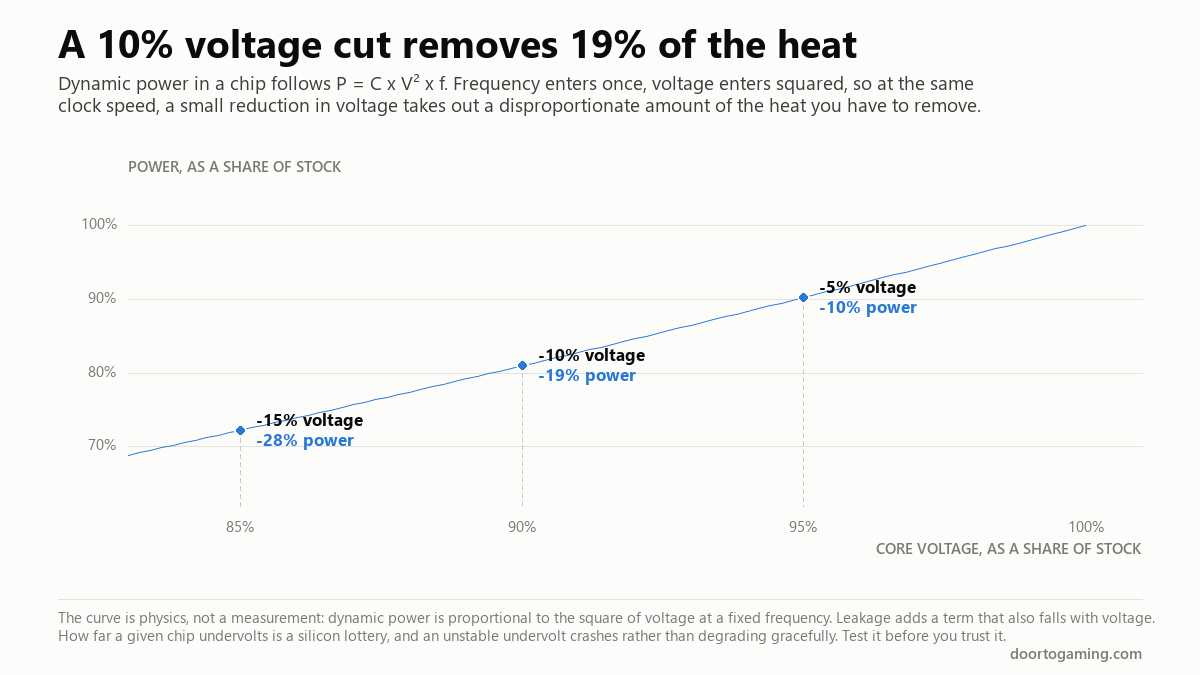
Dynamic power in a chip follows P = C × V² × f. Frequency appears once. Voltage appears squared. At a fixed clock speed, that asymmetry is worth a lot:
- 5% less voltage removes about 10% of the power
- 10% less voltage removes about 19%
- 15% less voltage removes about 28%
Heat you never generate is heat the cooler never has to move. A card that stays under its temperature threshold holds its boost clock instead of stepping down from it — which is why undervolting frequently raises sustained performance rather than trading it away. You are not accepting less speed for lower temperatures. You are removing the reason the card was slowing down.
Three caveats, because this is the one piece of advice here that can go wrong. How far a given chip will undervolt is a silicon lottery, and your result will not match someone else's. An unstable undervolt crashes rather than degrading gracefully, so it needs testing before you trust it. And the figures above are the physics of the dynamic component — leakage adds a further term, which also falls with voltage, so the real-world saving tends to be a little better than the arithmetic rather than worse.
The rest of the fixes, in order of effort
- Clean the dust. Free, boring, and routinely worth several degrees on a machine more than a year old.
- Set a more aggressive fan curve. Five minutes. Stock curves are tuned for acoustics, not for sustained clocks, and you may simply disagree with that trade.
- Fix case airflow. A card recycling its own exhaust will throttle no matter how good its own cooler is. This is the one people skip and the one that caps everything else.
- Undervolt. Half an hour including stability testing, and the largest single win available.
- Lower the power limit. Counterintuitive, but the top of the voltage-frequency curve is its least efficient part, so the first slice of power limit usually costs very little frame rate and buys a lot of temperature.
- Repaste or replace thermal pads. Real gains on older cards, and the only item here that can void a warranty. Last resort, not first.
One that is easy to miss: if you are capping your frame rate anyway — and you should be, just under your refresh rate — the card is doing less work and running cooler for free. A cap is a thermal fix that happens to also be a latency fix.
The short version
- Your first ten minutes are not representative. The heatsink starts cold and acts as a buffer; steady state arrives ten to twenty minutes in, and that is the number you actually play with.
- Nothing is broken when clocks fall. GPU Boost picks frequency continuously against power, temperature and voltage limits. Since Boost 4.0 it degrades along a plateau rather than dropping to base clock, which is why it is hard to notice.
- A 10% sustained clock loss takes 60 fps to 54, and lands in your frame times as well as your average, because the clock hunts around the threshold rather than settling.
- Reviews mostly cannot show you this. A 30 to 60 second pass is under 2% of an hour, measured while the cooler still has slack.
- Measure, do not guess. Log temperature, clock and frame time for thirty minutes and compare minute two with minute twenty-five. On NVIDIA,
nvidia-smi -q -d PERFORMANCEnames the limiter outright. - Undervolting is the big lever, because power follows the square of voltage: 10% less voltage is 19% less heat at the same clock. Dust, fan curve and case airflow come first because they are free.
Tags: Frame Time MSI Afterburner PC gaming performance FPS thermal throttling GPU temperature undervolting GPU Boost overclocking PC cooling fan curve gaming laptop
Written by Shujaat Ahmed
Shujaat Ahmed is the founder and editor of Door To Gaming. A lifelong gamer, he writes about the games, hardware, and industry news he cannot stop thinking about.