Steam Says 37 MB/s on Your 300 Mbps Plan. That Is Full Speed
Your plan is sold in megabits per second; Steam shows megabytes. A byte is 8 bits, so a 300 Mbps line running flat out reads 37.5 MB/s — which looks like an eighth of what you pay for and is all of it. How long a 100 GB game should really take, and the five things to check, in order, when your download genuinely is slow.
By Shujaat Ahmed · · 6 min read
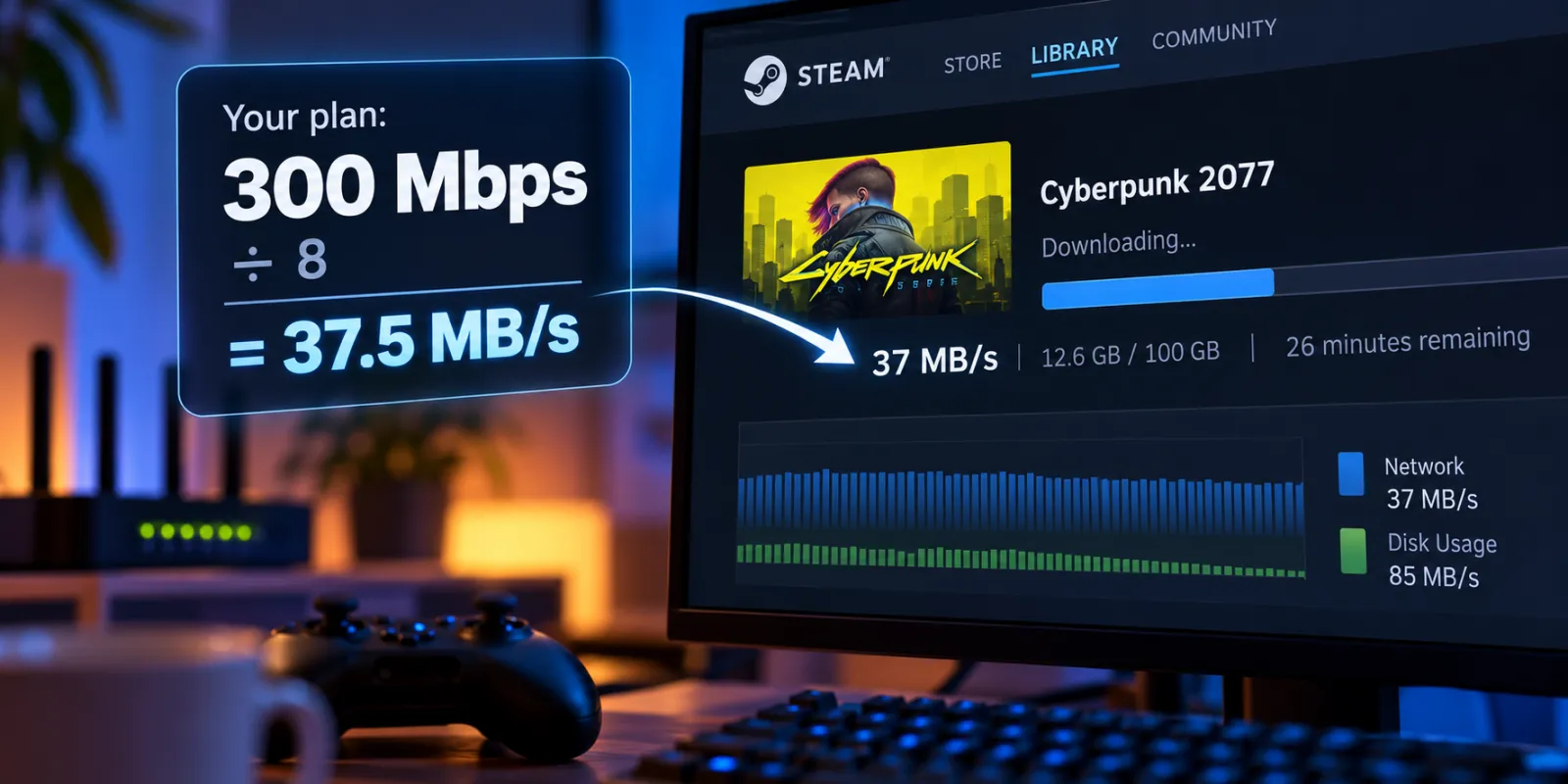
You pay for 300 Mbps. Steam says your download is running at 37 MB/s. It looks like you are getting an eighth of what you pay for.
You are getting all of it. Your internet plan is measured in megabits per second (Mbps). Steam, by default, shows megabytes per second (MB/s). A byte is 8 bits, so divide your plan by 8: 300 Mbps at full speed is 37.5 MB/s. If Steam shows roughly an eighth of your plan's number, your download is already running flat out, and nothing needs fixing.
If it shows much less than an eighth, something is genuinely slowing it down, and there are only a few usual suspects. This guide covers both: the arithmetic for how long a download should take, and where to look when it takes longer.
How long a 100 GB download should take
The calculation is simple once the units match. 100 GB is 800,000 megabits (100 × 1,000 × 8). Divide by your plan speed and you get seconds.
- 50 Mbps: 4 hours 27 minutes. Steam shows 6.25 MB/s.
- 100 Mbps: 2 hours 13 minutes. Steam shows 12.5 MB/s.
- 300 Mbps: 44 minutes. Steam shows 37.5 MB/s.
- 500 Mbps: 27 minutes. Steam shows 62.5 MB/s.
- 1 Gbps: 13 minutes. Steam shows 125 MB/s.
These are best cases: the plan running at its full advertised speed, with nothing else in the way. Real downloads come in somewhat slower, for reasons covered below. But the numbers give you a target. If your 100 Mbps connection takes six hours for 100 GB, you are well below what the line can do, and it is worth finding out why.
To make Steam match your plan's units, open Settings → Downloads and turn on Display download rates in bits per second. The speed shown will then be in Mbps, the same unit your provider uses, and the "eighth" disappears.
If it really is slow: the usual suspects, in order
Start by comparing Steam's speed (in bits) with your plan. If it is within about 10–20% of the plan, everything is normal. If it is far below, check these, roughly from most to least common.
1. Wi-Fi
A plan's speed is what arrives at your router. Wi-Fi then has to carry it across the room, through walls and floors, competing with every other device on the network. A PC or console two rooms away can easily receive a fraction of what the router gets.
The test is quick: run a speed test on the gaming device itself, then, if you can, plug it into the router with a cable and run it again. If the cable is much faster, the bottleneck is Wi-Fi, not your provider or Steam.
2. Your drive
Steam does not just download a game; it writes it to disk as it goes, and often unpacks compressed files at the same time. That makes your storage part of the download speed.
Steam's Downloads page shows this directly. Alongside the network speed, it shows disk usage — how fast it is writing to your drive. If network speed keeps dropping while disk activity is high, the download is waiting on the drive, not the internet.
An older hard drive is the usual culprit, especially on a fast connection. A gigabit line delivers up to 125 MB/s, which is a demanding rate for a hard drive to write steadily, and much harder still when a game is made of many small files rather than a few large ones. An SSD rarely holds a download back.
This is also why Steam sometimes looks "stuck" at the end of a download, or why an update downloads quickly and then spends minutes on a progress bar with almost no network activity. It is unpacking and writing what it already downloaded. We explain why game files are so large in the first place, and why updates often rewrite far more than they change.
3. The download server
Steam picks a download server near you, but it is not always the best one at the moment. In Settings → Downloads, the Download Region setting lets you choose. Trying a nearby region is a common, harmless fix when speeds are low across every game. The same page has a Clear Download Cache button, which can help when downloads keep stalling.
Big releases are a special case: when a major game or update launches, millions of people download it at once, and speeds can drop for everyone for a few hours. That fixes itself.
4. A speed limit you set and forgot
Steam can cap its own download speed, in the same Downloads settings. It is worth a glance before blaming anything else. Some routers have similar limits for individual devices.
5. Your provider
This is the one people suspect first, and it is usually the last. The US regulator's long-running Measuring Broadband America program has measured real wired connections against advertised speeds for over a decade; by 2014 its report found providers delivering, on average, 101% of their advertised download speed. Individual lines and busy evening hours vary, but if a wired speed test on your PC matches your plan and Steam does not, the problem is not the line.
Is a faster plan worth it for games?
Each step up in speed saves less time than the one before. For every 100 GB you download:
- 100 → 300 Mbps saves about 89 minutes.
- 300 → 500 Mbps saves about 18 minutes.
- 500 Mbps → 1 Gbps saves about 13 minutes.
The download time halves each time the speed doubles, but the minutes saved shrink fast. And above roughly half a gigabit, the drive and the unpacking start to matter more than the line, so the last step may save less than the arithmetic promises. Unless you download several large games a week, or share the connection with a busy household, the jump from a few hundred megabits to a gigabit is mostly a number on the bill.
One more number that does not match: GB
Windows shows file sizes in binary units but labels them "GB": its gigabyte is 1,073,741,824 bytes, not 1,000,000,000. So a game that Windows lists as 100 GB is about 107 GB in the decimal units speeds are measured in. It is a 7% difference — small, but it is why a calculation can come out a few minutes optimistic, and why a "1 TB" drive shows up in Windows as about 931 GB.
The short version
- Your plan is in megabits, Steam shows megabytes. Divide your plan by 8. 300 Mbps at full speed is 37.5 MB/s, and that is normal, not slow.
- A 100 GB game takes, at best: 4 h 27 min at 50 Mbps, 2 h 13 min at 100 Mbps, 44 min at 300 Mbps, 27 min at 500 Mbps, 13 min at 1 Gbps.
- To see Steam in the same unit as your plan: Settings → Downloads → Display download rates in bits per second.
- If it is genuinely slow, check in this order: Wi-Fi (test with a cable), your drive (watch Steam's disk usage), the download region, any speed limit, and only then your provider.
- Faster plans give diminishing returns: 100 → 300 Mbps saves 89 minutes per 100 GB; 500 Mbps → 1 Gbps saves 13.
Tags: PC Gaming Steam Game Install Size SSD download speed Mbps vs MB/s internet speed Wi-Fi Steam downloads game updates
Written by Shujaat Ahmed
Shujaat Ahmed is the founder and editor of Door To Gaming. A lifelong gamer, he writes about the games, hardware, and industry news he cannot stop thinking about.