Why Unreal Engine 5 Games Stutter: Four Causes, and the Test That Tells Them Apart
"UE5 stutter" isn't one problem. Shader compilation, world streaming, VRAM exhaustion and expensive rendering features all produce an almost identical hitch, and each responds to a completely different fix — which is why the advice you tried didn't work. Here's the five-minute test that tells them apart.
By Shujaat Ahmed · · · 7 min read
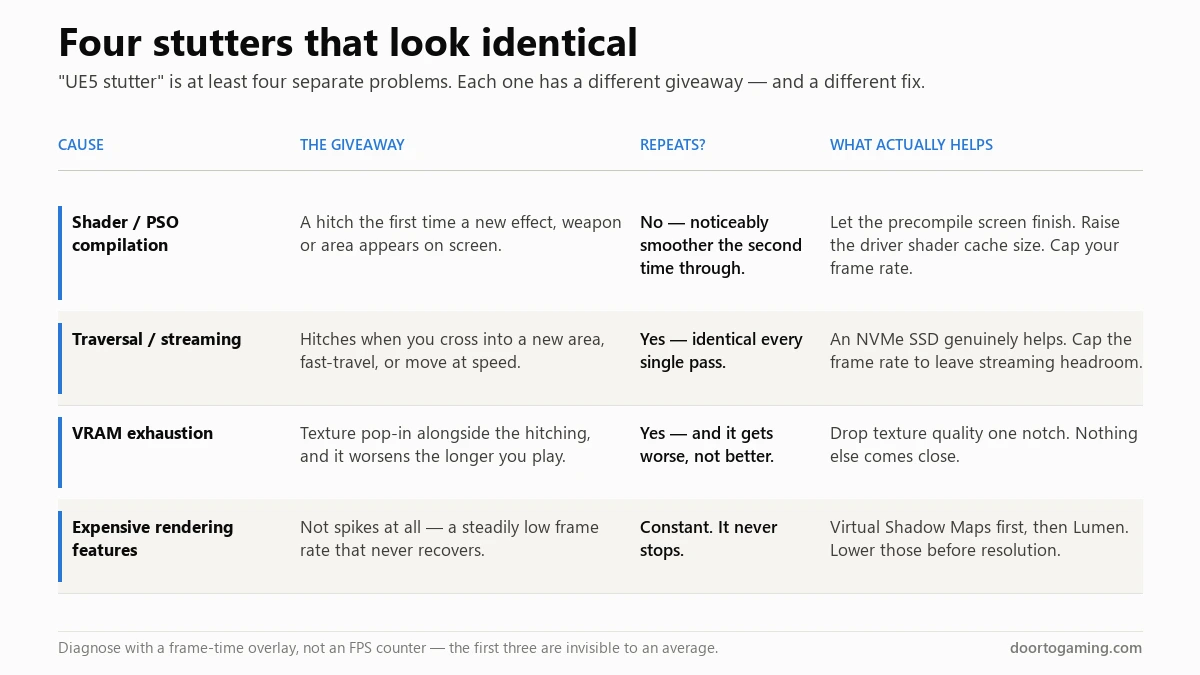
You searched "UE5 stutter fix." You got told to buy an NVMe drive, or cap your frame rate, or turn off Lumen, or wait for a patch. You tried one of them. It didn't help.
That isn't because the advice was wrong. It's because "UE5 stutter" isn't a thing. It's at least four separate problems that produce an almost identical symptom — a hitch — and each one responds to a completely different fix. Apply the streaming fix to a shader-compilation problem and nothing happens, which is exactly what most people experience.
The good news is that telling them apart takes about five minutes, and the test is simple enough to describe in a sentence.
Why Unreal Engine 5 in particular
Two shifts put UE5 games in this position, and neither is really a bug.
The first is the move to modern graphics APIs. Under DirectX 11, the driver managed shader compilation, quietly and mostly invisibly. Under DirectX 12 and Vulkan, the game is responsible, and the work happens at runtime the first time a given combination of shader and render state is actually drawn. That bundle is called a Pipeline State Object — a PSO — and compiling one can take anywhere from about 10 to 300 milliseconds on the render thread. A single 100ms compile is a very visible hitch.
The second is that UE5 shipped a genuinely new set of expensive systems — Nanite for geometry, Lumen for global illumination, Virtual Shadow Maps for shadows, and World Partition for streaming open worlds. All four are powerful. All four have engine defaults that assume a studio will tune them per project, and plenty of games ship without that tuning.
So you end up with four distinct failure modes wearing the same mask.
1. Shader / PSO compilation
What's happening: the game hits an effect, weapon, material or particle it has never drawn before, and has to compile the pipeline state for it right then. The render thread stalls while that happens.
The giveaway: it's tied to novelty. First time you see a new enemy's muzzle flash, first time you walk into a new biome, first time a particular spell goes off.
The test — and this is the single most useful one in this article: play a stretch of the game, then immediately replay the exact same stretch. If the second pass is noticeably smoother, that was shader compilation. The cache is warm now.
What helps:
- Let the shader precompilation screen finish. Skipping it moves all that work into gameplay.
- Raise your driver's shader cache size. This matters more than people expect. Borderlands 4 is the well-documented case: the default cache isn't big enough to hold the game's shaders, so entries get evicted and recompiled endlessly, and players found that raising Nvidia's Shader Cache Size to 100 GB largely resolved it. It lives under Manage 3D Settings — if you can't find it since Nvidia's software overhaul, we mapped where every Control Panel setting moved.
- Cap your frame rate slightly below what your hardware can sustain. The headroom absorbs compile spikes instead of letting them land as dropped frames.
What Epic is doing: UE 5.2 introduced runtime PSO precaching, which compiles these objects ahead of when they're needed. It genuinely works. The catch is that a game has to be built on a version that has it and the studio has to implement it properly, so engine improvements take years to reach the games you're playing.
2. Traversal / streaming
What's happening: World Partition chops an open world into a grid of cells and streams them in and out based on where you are — meshes, textures, collision, lighting. That work is supposed to happen asynchronously, well ahead of need. When it can't keep up, the game thread ends up blocking on something that should never have been on it: a disk read that overran its budget, an asset decompressing, a texture upload finalising.
The worst version is a synchronous flush: if the engine decides a cell must be visible right now because you're already inside its bounds, it blocks the game thread until that cell is fully loaded. That's your half-second freeze when you fast-travel.
The giveaway: it's tied to location and speed, not novelty. Crossing a threshold, fast-travelling, sprinting or driving across a map.
The test: it repeats identically. Walk the same route ten times with a fully warm shader cache and you'll get the same hitch in the same place every time.
What helps:
- An NVMe SSD genuinely helps here — this is the one stutter where storage speed is a real factor, not folklore.
- Cap your frame rate. Same logic as before: leaving GPU headroom gives the streaming system room to work.
- Slow down. Unsatisfying, but moving at the speed the streaming budget assumed does avoid it.
3. VRAM exhaustion
What's happening: the card runs out of local memory and starts pulling assets across the PCIe bus from system RAM, which is dramatically slower.
The giveaway: hitching that comes with texture pop-in — surfaces loading in blurry and sharpening a moment later — and that gets worse the longer you play, as the buffer fills.
The test: drop texture quality one notch and change nothing else. If the hitching stops, it was memory. This is the cleanest confirmation of any of the four.
What helps: texture quality, and essentially nothing else. It's by far the largest consumer of VRAM, and at 1080p the difference between Ultra and High textures is frequently close to invisible. We went through what cards actually do when they run short — including the fact that they quietly serve you lower-quality textures rather than telling you — in our piece on 8GB graphics cards.
4. Expensive rendering features
This one isn't stutter at all, which is why it's so often misdiagnosed. It's a steadily low frame rate that people describe as stutter because the game feels bad.
Rough cost order, most expensive first:
- Virtual Shadow Maps are frequently the single most expensive setting in a UE5 game's menu. Try this before anything else.
- Lumen with hardware ray tracing is costly and scales with your GPU's RT capability. Software Lumen is considerably cheaper and often looks close enough.
- Nanite is usually low-to-moderate, and can occasionally make things worse on simple scenes or heavy foliage.
The important bit: lower these before you lower resolution. Dropping resolution reduces the per-frame cost of work you're still doing; turning down Virtual Shadow Maps removes the work. If your frame rate is low because of an algorithmically expensive setting, resolution scaling is the inefficient lever.
How to actually diagnose yours
The whole process, in order:
- Put a frame-time graph on screen, not an FPS counter. MSI Afterburner with RivaTuner, or CapFrameX if you want to record it. This matters because three of these four causes are invisible to an average frame rate — if you're not sure why, we explained what 1% lows actually measure.
- Is the line steadily high, or spiky? Steadily high with no spikes means you're in category 4 — it's a cost problem, not a stutter problem. Go to the settings.
- Spiky? Replay the same stretch. Smoother the second time means shader compilation. Identical means streaming or VRAM.
- Check for texture pop-in. Present means VRAM. Absent, and tied to crossing into new areas, means streaming.
- Watch GPU utilisation during a spike. If it stays pinned, the GPU is busy — memory or streaming. If it drops, the GPU is waiting on something else, usually the CPU or your drive.
Five minutes, and you know which of the four fixes is worth your time.
The uncomfortable part
Most of this is not yours to fix.
PSO precaching is a developer responsibility. Streaming budgets are set during development. Engine defaults for Lumen and Virtual Shadow Maps are chosen by the studio. The player-side options — cache size, frame caps, an NVMe drive, texture quality — are mitigations for decisions already made.
That's worth knowing because it sets a realistic expectation. A game that stutters badly at launch because of streaming design usually still stutters a year later. A game that stutters because of shader compilation often improves a lot with a patch, because that one has a known engine-level solution.
So the diagnosis isn't just about which setting to change. It's also the best available signal for whether waiting is likely to help you at all.
Tags: PC Gaming Unreal Engine 5 VRAM Game Settings Frame Time & Stutter PC Performance Game Stutter Shader Compilation PSO Precaching Lumen & Nanite
Written by Shujaat Ahmed
Shujaat Ahmed is the founder and editor of Door To Gaming. A lifelong gamer, he writes about the games, hardware, and industry news he cannot stop thinking about.