Is the NVIDIA Control Panel Discontinued? Yes — and You Can Still Install It
The classic NVIDIA Control Panel reached end of life with driver 610.47 on 26 May 2026 — but it was not deleted from your PC, and it is still a free download. What was actually removed, how to reinstall it, what to do when it will not open, and where every setting moved in the NVIDIA App.
By Shujaat Ahmed · · · 8 min read
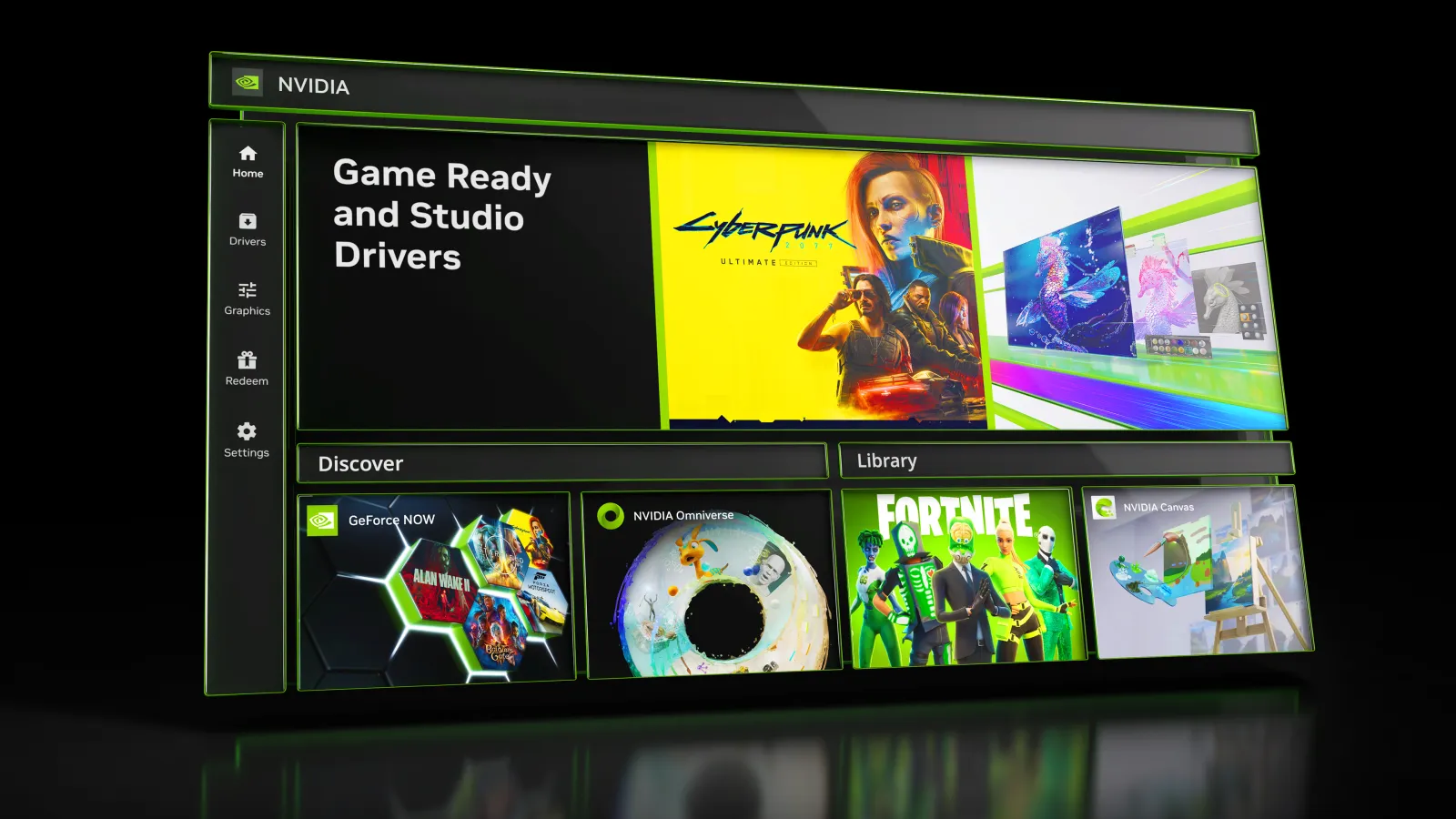
Yes — the classic NVIDIA Control Panel is discontinued. It reached end of life with GeForce driver 610.47 WHQL on 26 May 2026, and NVIDIA's wording left no room for interpretation: "After 20 years of dedicated service, the classic NVIDIA Control Panel is officially retiring for Game Ready and Studio Drivers."
But the two things people assume next are both wrong. It has not been deleted from machines that already had it, and it is still installable if you want it back.
Here is the full picture: what was removed, how to get it again, what to do if it won't open, and where every setting you rely on now lives.
Is the NVIDIA Control Panel discontinued?
Discontinued, yes. Deleted, no. Three things became true with driver 610.47:
- It receives no further updates, bug fixes or new features on consumer drivers. This is end of life in the proper sense — the software still runs, nobody is maintaining it.
- It is no longer bundled inside Game Ready or Studio driver packages.
- A clean install — ticking "perform a clean installation" in the driver installer — removes it entirely, leaving the NVIDIA App as the only front end.
The scope is specifically GeForce Game Ready and Studio drivers, which is what the overwhelming majority of gamers and creators run.
The exception: NVIDIA RTX PRO, the professional and workstation line, keeps the Control Panel for now — until the remaining professional features finish migrating to the App. If you are on a GeForce card, that carve-out does not apply to you.
Why the Control Panel is missing from your PC
If it vanished, one of two things happened, and the first is far more common than people realise.
You reinstalled or clean-installed your driver after late May 2026. Any driver from 610.47 onward simply does not contain it. It was not removed so much as never installed — which is why it is absent from your desktop right-click menu with no warning or uninstall prompt.
You updated normally and it is still there. A standard driver upgrade leaves an existing Control Panel installation alone. NVIDIA only strips it out during clean installs. So if you have been updating in place, you may still have it months after the retirement.
That difference explains most of the confusion online: two people on the same driver version can legitimately have different answers about whether the panel exists on their machine.
Can you still install the classic NVIDIA Control Panel?
Yes. It remains a free download on the Microsoft Store, and NVIDIA has deliberately kept it there so that people who want the old interface are not forced to pin an outdated, insecure driver just to keep it.
If you would rather not go through the Store interface, the same package installs from the command line:
winget install "NVIDIA Control Panel" --id 9NF8H0H7WMLT -s msstoreTwo caveats, stated plainly:
- "Available" is not "supported." NVIDIA ships no further updates, bug fixes or features for this build. Treat it as a stopgap, not a long-term plan.
- It still will not come back on its own. Future clean installs will keep removing it, so you may need to reinstall it after major driver work.
If it is installed but will not open
Two causes account for most of these, and neither is the retirement.
The display service is not running. The Control Panel depends on NVIDIA Display Container LS. Open an admin Command Prompt and restart it:
net stop "nvidia display container ls"
net start "nvidia display container ls"
The Store version is installed somewhere other than C:. If Windows is configured to save new apps to another drive, the Microsoft Store build can install but fail to launch. Set new apps to install to C: in Windows Settings, then reinstall it.
If the service is running, it is installed on C:, and it still will not open, the pragmatic answer is that you are maintaining dead software — the App is where the fixes go now.
Where your settings went in the NVIDIA App
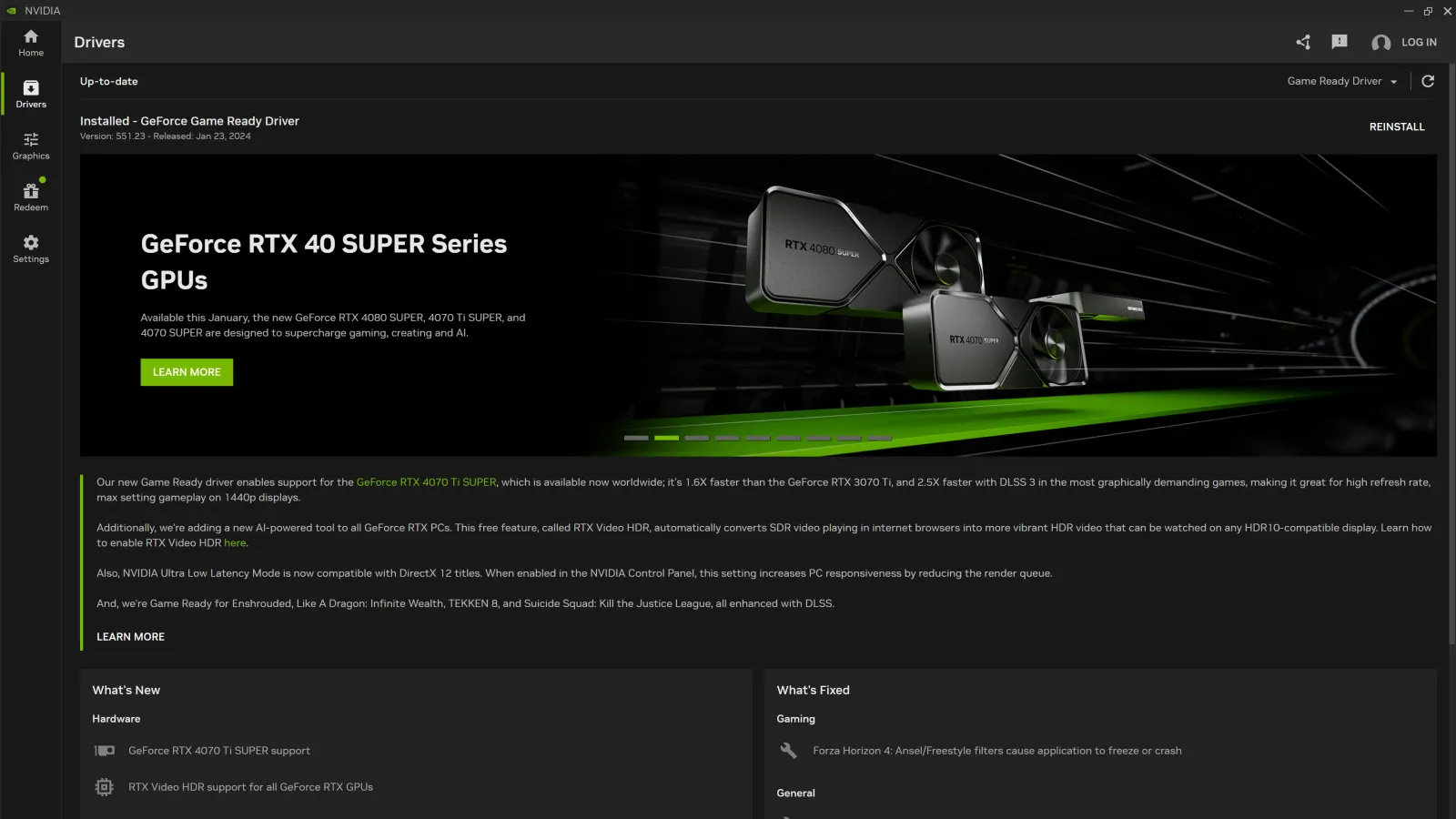
This is the part that actually matters day to day. The App reorganises the old Control Panel's sprawling tree into two areas — System and Graphics — and once the split clicks, it is genuinely faster than the old interface.
Display settings live under the System tab, in Displays:
- Resolution and refresh rate
- G-SYNC / Variable Refresh Rate setup
- Display scaling (GPU vs display scaling, aspect ratio, full-screen)
- Desktop colour settings and HDR
- Multiple displays and Surround
The old Manage 3D Settings now lives under the Graphics tab, with the same two layers you are used to:
- Global Settings — your system-wide defaults
- Program Settings — per-game overrides, auto-detected for installed titles
That is where V-Sync, Low Latency Mode (Reflex), Max Frame Rate, texture filtering quality, anisotropic filtering, antialiasing, power management mode and threaded optimisation all now live.
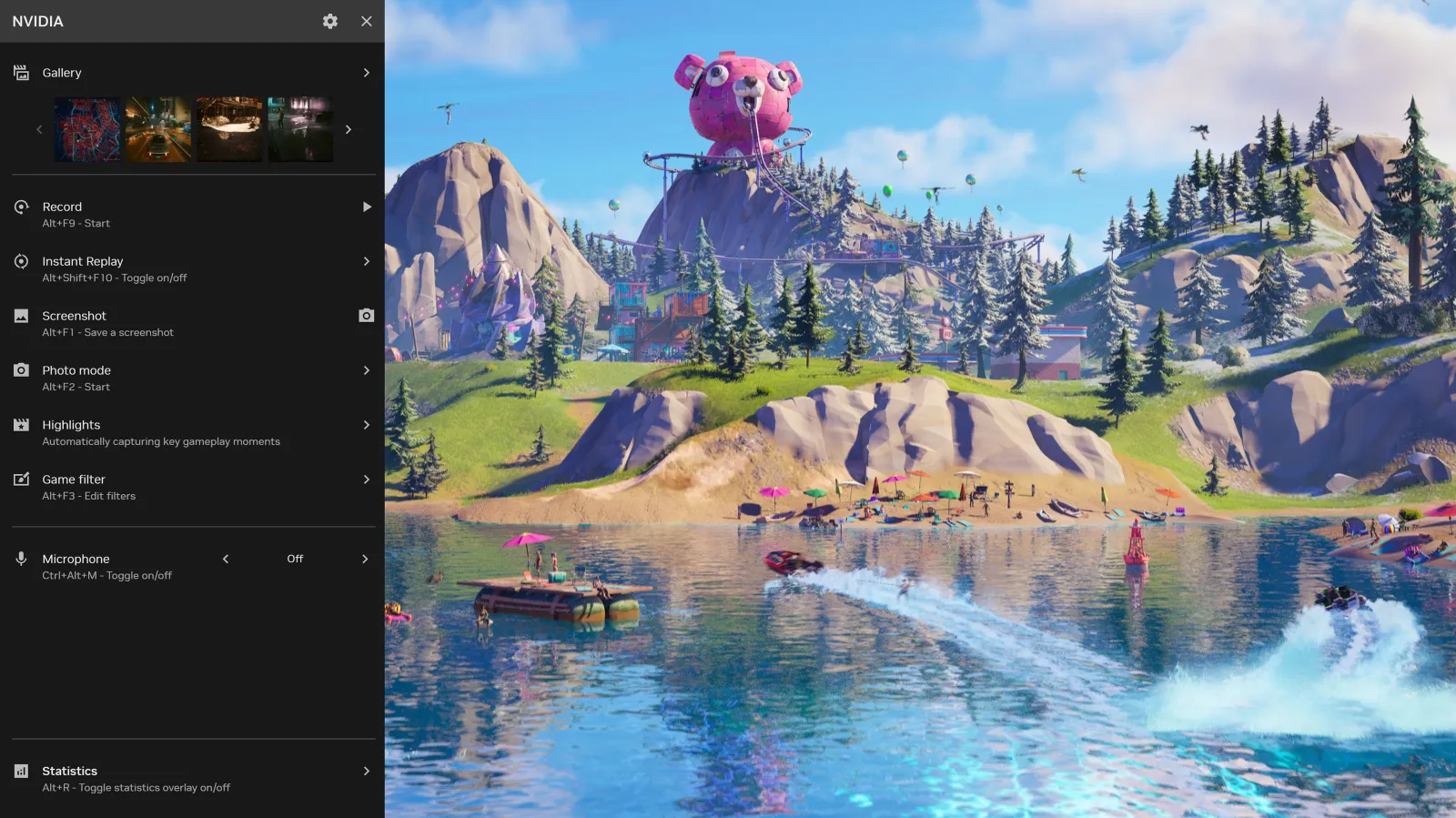
Driver downloads — GeForce Experience's old job — sit under the Drivers tab, and the in-game overlay for stats, filters, recording and performance tuning is built in.
Recent App updates folded in the last stragglers from the old 3D settings list: anisotropic filtering, antialiasing, MFAA, PhysX, texture filtering and background-application frame rate caps, plus multi-monitor Surround and bezel correction. The "the App is missing features I actually need" complaint that held water a year or two ago has largely evaporated.
A quick migration checklist
If you are setting up the App for the first time after years in the Control Panel, do this in order:
- Install the App (or update it) and pull the newest driver from the Drivers tab. This is also how you stay ahead of NVIDIA's driver security bulletins, which are aimed squarely at people running pinned, older drivers.
- Open System → Displays and set resolution, refresh rate and G-SYNC.
- In the same panel, sort out scaling and confirm colour and HDR to your taste.
- Go to Graphics → Global Settings and set your baseline: V-Sync, Low Latency, texture filtering.
- Add your main games under Program Settings for per-title tweaks.
NVIDIA has since added an offline mode, so core display and driver settings no longer force you to sign in — historically the loudest complaint about the App.
While you are in there, two settings are worth understanding properly rather than just toggling: our pieces on what frame generation actually costs you and what 1% lows measure cover the two that most change how a game feels.
Was it worth losing?
Honestly, something was lost. The classic Control Panel was ugly, but it was fast, lightweight and utterly predictable. It opened instantly, never phoned home and never asked you to log in. The App is heavier and busier, and for someone who just wanted to force V-Sync in three clicks that is a real downgrade in feel, if not in function.
Against that, the App is genuinely better at what most people do day to day: one-click driver updates, per-game optimisation, DLSS and Reflex overrides, and an overlay that finally retires GeForce Experience. The practical reality is that it now does everything the Control Panel did, and development is only moving one way.
Make the switch deliberately rather than by accident. Learn the System/Graphics split, keep the Store version bookmarked as a fallback, and you will barely miss the old grey-and-green box.
Quick answers
- Is the NVIDIA Control Panel discontinued? Yes — end of life from driver 610.47, 26 May 2026. No further updates or fixes.
- Was it deleted from my PC? Only by a clean install. Normal driver updates leave an existing installation alone.
- Can I still install it? Yes, free on the Microsoft Store, or
winget install "NVIDIA Control Panel" --id 9NF8H0H7WMLT -s msstore. - Why won't it open? Restart the
NVIDIA Display Container LSservice, and make sure the Store version is installed on C:. - What replaced it? The NVIDIA App — display settings under System → Displays, 3D settings under Graphics.
- Any exceptions? RTX PRO workstation cards keep it until professional features finish migrating.
Tags: PC gaming hardware NVIDIA Control Panel dead NVIDIA App migration GeForce drivers update NVIDIA graphics settings classic NVIDIA control panel GPU driver software PC gaming tech news legacy software retirement
Written by Shujaat Ahmed
Shujaat Ahmed is the founder and editor of Door To Gaming. A lifelong gamer, he writes about the games, hardware, and industry news he cannot stop thinking about.